• 2TubeNow

Update Facebook App

Facebook is among the most prominent socials media out there. It stands currently as having hundreds of millions of individuals, which n...

Showing posts with label Facebook Friends. Show all posts

How to add or remove friends from a Facebook friends List | How do I add or remove someone from a list?

 Facebook Friends, Facebook List     No comments   

Today, we will show you how to add or remove people from Facebook friends list... Follow the steps given below.


See also: How do I create an Acquaintances list on Facebook?

To add friends to a custom list or smart list


To add friends to a custom list or smart list from the tips below:
  • Click Friend Lists under Explore on the left side of your News Feed
  • Click the name of the list you want to edit
  • Click Manage List > Edit List
  • Click On This List > Friends
  • Search for friends, then click on their name to add them to the list
  • Click Finish.


To remove someone you're friends with from a list

To remove someone you're friends with from your friend's list, follow the steps below:
  • Click Manage List > Edit List
  • Click on a friend's name to remove them from the list
  • Click Finish.

See also: How can i delete my Facebook account permanently?


Any confusion? please don't hesitate to let us know via the comment section. Also, kindly share this article if it has helped you in adding or removing friends from your Facebook friends list. Thanks.
Read More
  • Share This:  
  •  Facebook
  •  Twitter
  •  Google+
  •  Stumble
  •  Digg

How to Hide Your Facebook Friend List from Friends and Others

 Facebook Friends, Friends, Friends List     No comments   

As you know, by default, Facebook keeps your friends list public and visible to every other Facebook user but you've got the choice of hiding it from other Facebook friends. Let's see how to hide friends list from Facebook friends.
Now, a user has control on almost everything in their profile (e.g. status, photos, albums etc). The user also has the control of how they want to share material (e.g. with everyone, friends, friends of friends, etc). Users can even manually hide a status from specific people.

If you don’t want strangers to see your friend list, then you can just hide it from them. It’s very easy. You can use the enhanced Facebook privacy settings to modify your friend list’s visibility.

One thing which I have noticed when you keep your friend list public is that many people see that list and start adding friends blindly.


How to Hide Your Facebook Friend List from Friends and Other FB Users


And seeing common friends, other friends usually accept the friend request. It’s kind of embarrassing when your female friend informs you that some mutual friend of yours has sent her a friend request.

It’s better to let your friend list be visible only to you and hidden from others.

How to Hide Facebook Friend List from Others


By default, everyone can see the Friends section of your profile. To adjust who can see your Friends section:
Go to your profile
Click Friends below your cover photo
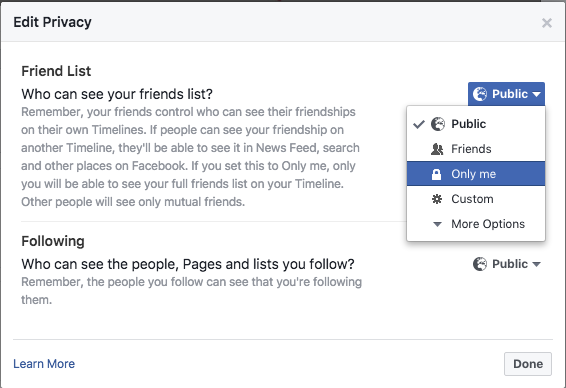
Click at the top of the page and select Edit Privacy from the dropdown menu
Hide Facebook Friend List from Friends and Others


Select an audience (ex: Friends, Public) to choose who you share your friend list with on your profile.

Hide Facebook Friend List to only me


Note: People may see mutual friends when they visit your profile. Your friends also control who can see their friendships on their own profiles. If people can see your friendship on another profile, they'll also be able to see it in News Feed, search and other places on Facebook.Now, on your Facebook friend list page, simply click on the “Manage” icon at the top right & click on “Edit Privacy”.'


Smart Read:
  • Delete my Faceɓook account Permanently
  • Delete Your Faceɓook Account ~ Delete Faceɓook Account
  • How to delete faceɓook account permanently


From here you can control who can see your friend list and who can’t. I usually keep it visible to me only, as this is better for the privacy of my friends because I don’t want them to be bombarded with unlimited friend requests.

If you don’t want anyone to see your Facebook friend list, keep the “Who can see your friend list” setting to “Only Me”.


Conclusion

Keeping your Facebook friend list visible to other people is totally a thing of choice, but my humble suggestion would be to keep it hidden and private to you alone for the privacy of your true friends.
Read More
  • Share This:  
  •  Facebook
  •  Twitter
  •  Google+
  •  Stumble
  •  Digg

How to Hide Your Facebook Friend List from Friends and Others

 Facebook Friends, Friends, Friends List     No comments   

As you know, by default, Facebook keeps your friends list public and visible to every other Facebook user but you've got the choice of hiding it from other Facebook friends. Let's see how to hide friends list from Facebook friends.
Now, a user has control on almost everything in their profile (e.g. status, photos, albums etc). The user also has the control of how they want to share material (e.g. with everyone, friends, friends of friends, etc). Users can even manually hide a status from specific people.

If you don’t want strangers to see your friend list, then you can just hide it from them. It’s very easy. You can use the enhanced Facebook privacy settings to modify your friend list’s visibility.

One thing which I have noticed when you keep your friend list public is that many people see that list and start adding friends blindly.


How to Hide Your Facebook Friend List from Friends and Other FB Users


And seeing common friends, other friends usually accept the friend request. It’s kind of embarrassing when your female friend informs you that some mutual friend of yours has sent her a friend request.

It’s better to let your friend list be visible only to you and hidden from others.

How to Hide Facebook Friend List from Others


By default, everyone can see the Friends section of your profile. To adjust who can see your Friends section:
Go to your profile
Click Friends below your cover photo
Click at the top of the page and select Edit Privacy from the dropdown menu

Hide Facebook Friend List from Friends and Others


Select an audience (ex: Friends, Public) to choose who you share your friend list with on your profile.

Hide Facebook Friend List to only me


Note: People may see mutual friends when they visit your profile. Your friends also control who can see their friendships on their own profiles. If people can see your friendship on another profile, they'll also be able to see it in News Feed, search and other places on Facebook.Now, on your Facebook friend list page, simply click on the “Manage” icon at the top right & click on “Edit Privacy”.'


Smart Read:
  • Delete my Faceɓook account Permanently
  • Delete Your Faceɓook Account ~ Delete Faceɓook Account
  • How to delete faceɓook account permanently


From here you can control who can see your friend list and who can’t. I usually keep it visible to me only, as this is better for the privacy of my friends because I don’t want them to be bombarded with unlimited friend requests.

If you don’t want anyone to see your Facebook friend list, keep the “Who can see your friend list” setting to “Only Me”.


Conclusion

Keeping your Facebook friend list visible to other people is totally a thing of choice, but my humble suggestion would be to keep it hidden and private to you alone for the privacy of your true friends.
Read More
  • Share This:  
  •  Facebook
  •  Twitter
  •  Google+
  •  Stumble
  •  Digg
Older Posts Home

Blog Archive

  • ▼  2018 (2107)
    • ▼  October (310)
      • ▼  Oct 17 (8)
        • Update Facebook App
        • Download Facebook Mobile App for iPhone
        • Change Facebook Sign In Email
        • How to Hide Your Followers on Facebook
        • I Want To Delete My Facebook
        • Send A Friend Request On Facebook
        • Log Out Of Facebook Messenger
        • Delete facebook page | Remove my page on facebook
      • ►  Oct 15 (50)
      • ►  Oct 14 (74)
      • ►  Oct 13 (10)
      • ►  Oct 12 (118)
      • ►  Oct 11 (50)
    • ►  June (350)
      • ►  Jun 07 (50)
      • ►  Jun 06 (50)
      • ►  Jun 05 (50)
      • ►  Jun 04 (50)
      • ►  Jun 03 (50)
      • ►  Jun 02 (100)
    • ►  May (1399)
      • ►  May 30 (50)
      • ►  May 28 (50)
      • ►  May 27 (50)
      • ►  May 26 (50)
      • ►  May 25 (50)
      • ►  May 24 (50)
      • ►  May 23 (50)
      • ►  May 22 (25)
      • ►  May 21 (50)
      • ►  May 20 (50)
      • ►  May 19 (50)
      • ►  May 18 (100)
      • ►  May 17 (43)
      • ►  May 16 (49)
      • ►  May 15 (50)
      • ►  May 14 (50)
      • ►  May 13 (99)
      • ►  May 12 (101)
      • ►  May 09 (50)
      • ►  May 08 (50)
      • ►  May 07 (50)
      • ►  May 06 (50)
      • ►  May 05 (50)
      • ►  May 04 (45)
      • ►  May 03 (35)
      • ►  May 02 (25)
      • ►  May 01 (27)
    • ►  April (23)
      • ►  Apr 04 (23)
    • ►  March (25)
      • ►  Mar 27 (17)
      • ►  Mar 26 (8)

Copyright © 2TubeNow